On most days I struggle to eat enough, so I find it useful to track my dietary intake from time to time. There are many apps for this, but of the ones I’ve looked at, I always found they did too much or were too fiddly, maybe they needed an account on a remote system, or were not straightforward about how my data would be used. I resorted to coming up with a home-brew solution based mainly on iOS Shortcuts that fits my needs pretty well.
Requirements
- All UI and info visible on one easy-to-get-to screen on my iPhone.
- All data stored locally in a database or in Health.
- Shortcuts to record things I commonly eat; a quick way to enter nutritional info for other things.
- Tracks calories and protein – the two things I am regularly short on.
Solution
The dashboard is in the Today View, and it looks like this:

From here I can record dietary intake, and see at a glance how my energy intake for today compares to expenditure.
To record intake, I hit the relevant shortcut, which writes data into Health at today’s date – I’ve kept data entry simple, because anything complicated will be rarely needed and can be done in the Health app anyway. Shortcuts have different behaviour depending on possible variations in the item they record:
- Items with no variation, such as Porridge, ask for confirmation (in case I accidentally hit the shortcut) then record fixed values (e.g 379 kcal, 24g protein).
- Items that come in different sizes, like an apple (small, medium, large) prompt for the size of the item, then record values appropriate to the selected size.
- For items I don’t eat regularly, I can hit “Other”, which prompts for the calorie and protein values to record.
Shortcut implementation
The “Log Health Sample” action is used to record data, and the shortcuts combine these actions with appropriate prompts – e.g. for Porridge, “Show Alert” is used to confirm:

Or for an apple, “Choose From Menu” is used:
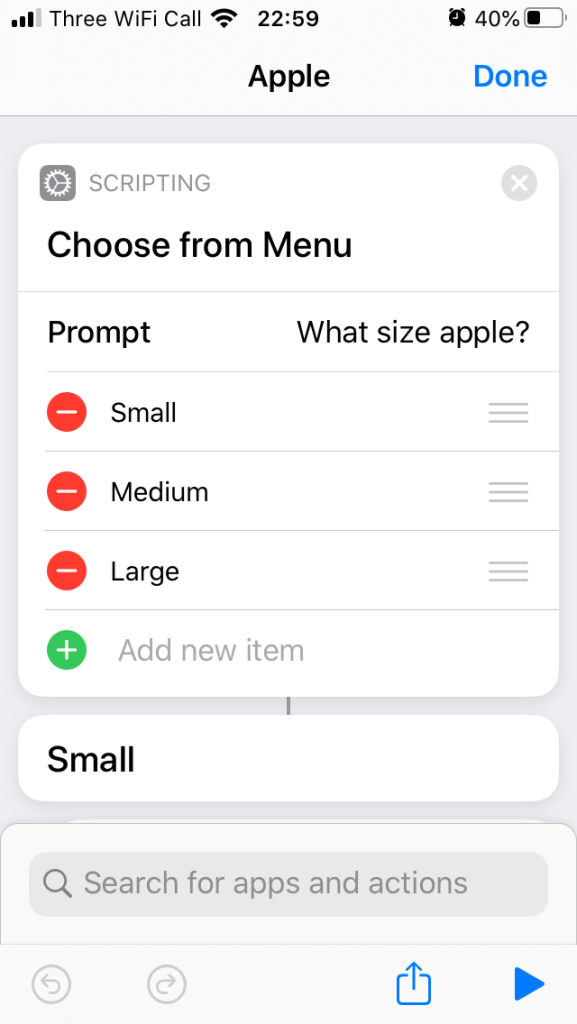
along with different “Log Health Sample” actions for each choice:

“Other” uses the “Ask” action to input calorie and protein values, and use “Provided Input” in the “Log Health Sample” actions:

Info view implementation
I couldn’t find a built-in way to display Health data in a convenient form in the Today View, so I’m using the HealthView app to do this. My considerations in choosing it were:
- It’s reasonably priced (£5.99 for lifetime use).
- It claims not to share or use the data for any purpose other than displaying it.
- Even if the claim about data is a lie, I have set it to only have permission to read (and not write) Dietary Energy, Total Energy, and Protein – I can live with this small amount of specific data being Mia-used.
- It seems to work well enough – I could figure out how to use it and not encounter any irritating bugs or misfeatures well within the 14-day free trial.
To get the view shown in the Today view, all I had to do was select the data I wanted in “Today Widget Data Sets”:

Although I hadn’t considered it in my requirements, HealthView also supports displaying information on an Apple Watch, which has turned out to be pretty convenient. It supports showing data in complications and in an accompanying Watch app.
Using complications didn’t really work for me – I found that I needed too many to see everything I’m interested in (even though that’s only 3 items) at a glance, and I wasn’t willing to give up other functionality on my faces to fit these all in. I was also not keen on adding another face to show all the info, as I don’t expect I’d look at it much if I had to keep swiping over to it to check.
However, the Watch app is working well for me. After adding the same categories to the Apple Watch Data Sets settings:

I can check current values on the watch:

This is quite convenient for checking quickly whether I’m lagging far behind what I ought to have eaten. A nice touch is that the time and date that the data was last refreshed is also shown:

This is quite handy as I’ve noticed that some Watch apps can be quite poor at showing up-to-date data (Hello, British Airways!) – although HealthView seems to stay well in-sync between the watch and phone, it’s reassuring to be able to verify that the synchronisation is recent.
Concluding thoughts on Shortcuts
Shortcuts provides the ability to quickly and easily build something app-like without having to use a Mac and XCode (which would be expensive and requires a lot of expertise), in a form accessible to non-developers. This my first attempt at building anything with Shortcuts, and it only took a couple of hours from starting with an idea all the way up to having tweaked things to work exactly as I wanted.
I’m keen to share how to use it with non-technical friends and acquaintances, to see how it can be useful to them, and what they can implement and automate with it. That it is available on every iOS device, with little technical knowledge required to accomplish a great deal, makes it a very interesting and powerful No Code platform.
 Graham Markall